> ## Documentation Index
> Fetch the complete documentation index at: https://docs.suga.app/llms.txt
> Use this file to discover all available pages before exploring further.
# Deployments
> Immutable snapshots of your infrastructure configuration
Deployments are immutable snapshots that capture the complete state of your infrastructure at a specific point in time. Every time you click "Deploy", Suga creates a new deployment with your current configuration.
## What is a Deployment?
Deployments are versioned snapshots providing complete audit trails. Every deployment records who made changes, when, and why, giving you the version control and reproducibility of Infrastructure as Code without configuration files.
A deployment is a snapshot that includes:
* **All Services** - Containers and functions with their complete configuration
* **All Volumes** - Persistent storage definitions and mount paths
* **Environment Variables** - All configuration and secrets (encrypted)
* **Resource Allocations** - CPU, memory, and replica counts
* **Networking Configuration** - HTTPS endpoints, TCP proxies, and ports
* **Timestamp and Author** - When deployed and by whom
Deployments are immutable - once created, they never change. This makes them perfect for auditing, rollback, and compliance.
## Deployment Lifecycle
A deployment goes through several states:
```
Running → Active
↘ Failed
```
| State | Description |
| ------------- | ------------------------------------------------------------------ |
| **Running** | Deployment is in progress, services are starting |
| **Active** | Deployment succeeded and is the current live version |
| **Completed** | Previous deployment that was replaced by a newer active deployment |
| **Failed** | Deployment encountered an error and stopped |
Only one deployment can be active per environment at a time. Starting a new deployment replaces the previous active deployment, which moves to "Completed" status.
## Deployment Process
When you click the **Deploy Changes** button:
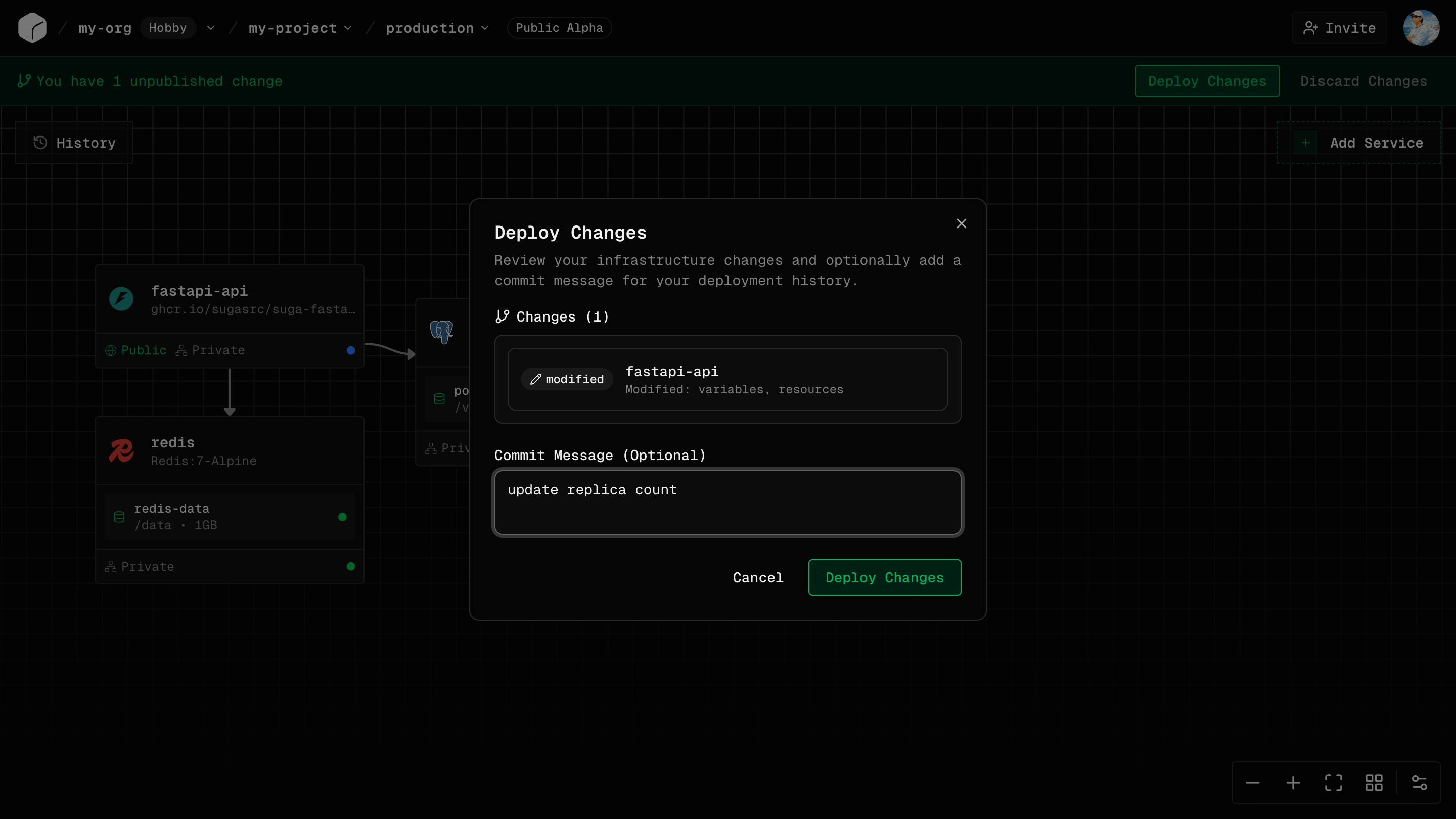 Suga captures your current canvas configuration, creating an immutable snapshot.
The configuration is validated:
* All required fields are set
* Resource limits are within plan allowances
* Volume mount paths are valid
Resources are created or updated.
Docker images are pulled from registries to the cluster nodes.
Containers and functions start and begin initializing.
Traffic is routed to the new services. Old services are gracefully terminated.
The deployment moves to "Active" state and becomes the current live deployment.
## Deployment History
Suga maintains a complete version control history of all deployments for each environment. This deployment history provides the same guarantees as traditional IaC tools (versioned infrastructure, audit trails, reproducibility) while maintaining deployment speeds under 10 seconds.
Suga captures your current canvas configuration, creating an immutable snapshot.
The configuration is validated:
* All required fields are set
* Resource limits are within plan allowances
* Volume mount paths are valid
Resources are created or updated.
Docker images are pulled from registries to the cluster nodes.
Containers and functions start and begin initializing.
Traffic is routed to the new services. Old services are gracefully terminated.
The deployment moves to "Active" state and becomes the current live deployment.
## Deployment History
Suga maintains a complete version control history of all deployments for each environment. This deployment history provides the same guarantees as traditional IaC tools (versioned infrastructure, audit trails, reproducibility) while maintaining deployment speeds under 10 seconds.
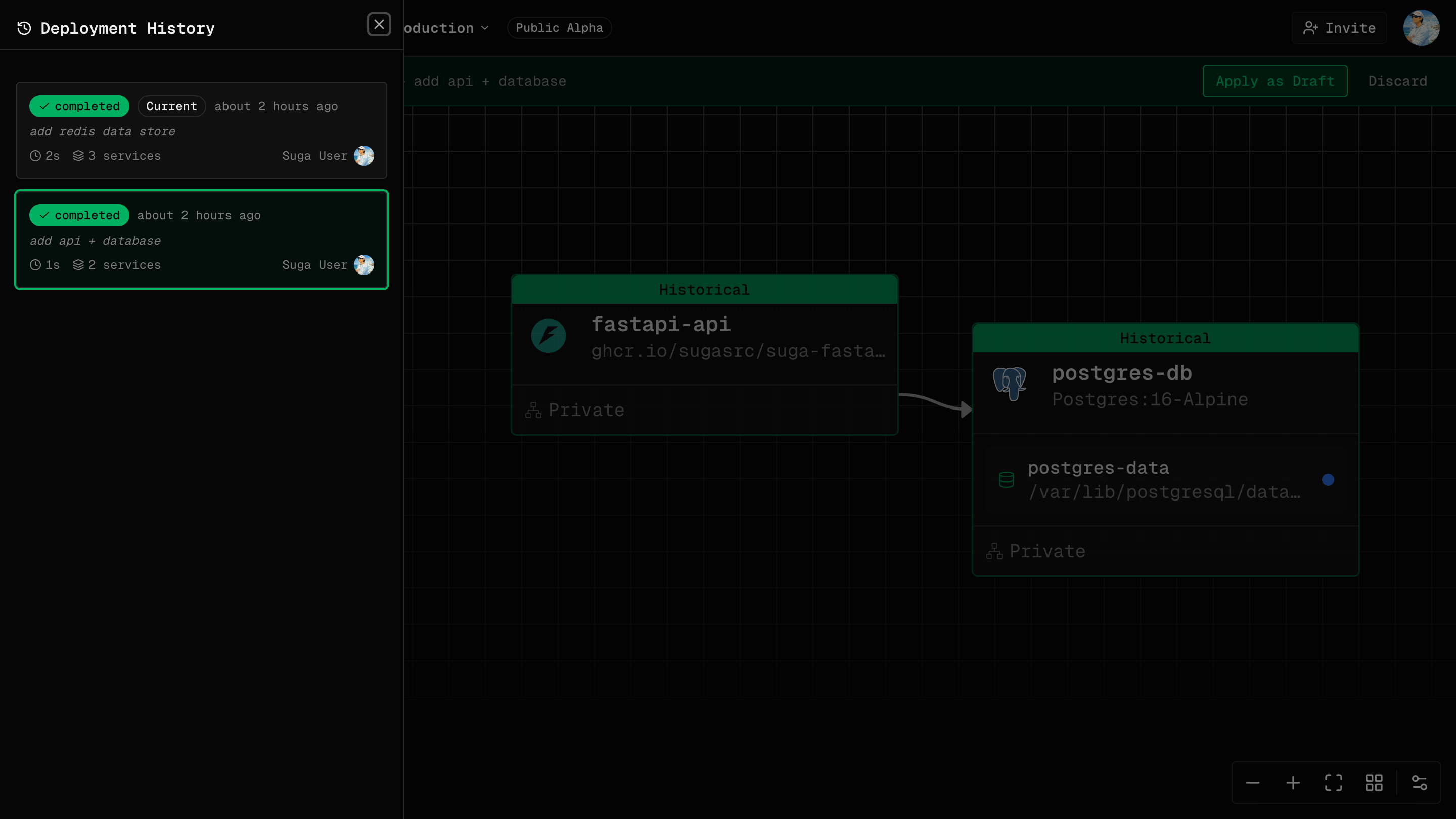 **What's Tracked:**
* Deployment ID and number
* Timestamp (when deployed)
* Author (which user triggered the deployment)
* Commit message (explaining what changed and why)
* Status (Active, Completed, Failed, Running)
* Configuration snapshot (full state at deployment time)
**Retention:**
* **Free**: Last 10 deployments per environment
* **Pro**: Unlimited deployment history
* **Enterprise**: Unlimited deployment history with audit logs
Once you exceed the retention limit on Free plans, older deployments are automatically deleted and can no longer be accessed or rolled back to.
## Active Deployment
Only one deployment is active per environment at a time:
* **Active Deployment** - The currently running version of your application
* **Previous Deployments** - Historical versions available for rollback
* **Failed Deployments** - Never become active; useful for debugging
When you create a new deployment:
1. The new deployment starts in "Running" state
2. Old active deployment remains active during the transition
3. New deployment finishes starting services
4. New deployment becomes "Active"
5. Old deployment moves to "Completed" status
This ensures zero-downtime deployments.
## Zero-Downtime Deployments
Suga uses a rolling update strategy by default:
**How It Works:**
1. A new instance starts alongside the old one. At most one extra replica runs during the rollout, and no replicas are removed early.
2. Traffic shifts to the new instance once it reports ready.
3. The old instance is terminated.
**Benefits:**
* No downtime during deployments
* Gradual traffic migration reduces risk
* A failed start leaves the old instance serving traffic
### Volumes Use a Recreate Strategy
Services with mounted volumes can only run one instance at a time, since storage is attached to a single instance. For these services, Suga switches to a **recreate** strategy:
1. The old instance stops and the volume detaches.
2. The volume attaches to the new instance.
3. The new instance starts.
There's a brief gap (usually a few seconds) while the volume hands over. Stateless containers and functions still use the rolling strategy.
Keep databases and other stateful services separate from your application tier. Then only the stateful service takes the short restart, and the rest of your stack rolls forward with zero downtime.
## Automatic Redeploys
Suga can roll out new image versions on its own, without you clicking Deploy.
**For images Suga builds:** A push to the watched branch triggers a build. When it succeeds, the service pulls the new image and rolls out using the strategy above.
**For pre-built images from external registries:** Suga polls the registry for a new digest at the same tag. When it changes, the service rolls out.
Either way, the rollout goes through the normal deployment lifecycle, appears in deployment history, and can be rolled back.
Automatic redeploys reuse the active deployment's configuration and only swap the image. To change env vars, resources, or networking, deploy from the canvas.
## Rolling Back Deployments
If a deployment causes issues, roll back to a previous version:
Click the **History** button in your environment.
Click on a previous deployment that was successful.
The previous configuration appears on the canvas. Review it to confirm it's the version you want.
Click **"Apply as Draft"** to load the previous configuration as a draft on your canvas.
Click **"Deploy"** to create a new deployment with the previous configuration. This creates a new entry in deployment history, just like any other deployment.
Rolling back works like a revert commit in Git - it creates a new deployment with the old configuration rather than undoing the current deployment.
Rolling back restores configuration (images, env vars, resources, networking) but does NOT restore volume data or database state. Handle data migrations carefully.
## What Gets Rolled Back
When you roll back to a previous deployment:
**Restored:**
* Container images and tags
* Environment variables
* CPU and memory allocations
* Replica counts
* Networking configuration (HTTPS, TCP proxy, ports)
* Function code
**NOT Restored:**
* Volume data (files persisted to disk)
* Database records (data in PostgreSQL, MariaDB, etc.)
* External service state (uploaded files to S3, third-party API data)
Always test database schema changes in staging before production. If a migration causes issues, you may need to manually revert the database in addition to rolling back the deployment.
## Viewing Deployment Details
Click on any deployment in the history to view:
**Deployment Metadata:**
* Deployment number and ID
* Timestamp
* Triggered by (user)
* Status
* Duration
**Configuration Snapshot:**
* All services with full configuration
* All volumes with sizes and mount paths
* Complete environment variables (values are masked for security)
* Resource allocations
* Networking setup
**Deployment Logs:**
* Real-time logs during deployment
* Stage-by-stage progress
* Errors or warnings
## Deployment Triggers
Deployments can be triggered in several ways:
**Manual Deployment (Current):**
* Click the **Deploy Changes** button in the canvas
* Immediate deployment of current configuration
**API Deployment (Coming Soon):**
Public API for triggering deployments from CI/CD pipelines is coming soon in a future release.
**Preview Environments (Coming Soon):**
Automatic deployments for pull requests (Preview Environments) are coming soon in a future release.
## Common Questions
No, only one deployment can be active per environment at a time. Starting a new deployment replaces the previous active one.
No, you must deploy to each environment separately. Deploy to staging first, test, then deploy to production.
The deployment moves to "Failed" state and the previous active deployment continues running. Your application is not affected by failed deployments.
Not currently. Deployments are triggered manually by clicking the **Deploy Changes** button. Scheduled and automated deployments are planned for future releases.
Small applications typically deploy in under 10 seconds. Larger applications with many services usually complete in 30-60 seconds, significantly faster than traditional Infrastructure as Code tools.
Deployments are atomic per service. If a service fails to deploy, it doesn't affect other services. The entire deployment may complete with some services failing.
## Deployment vs. Release
**Deployment:**
* Technical operation of provisioning infrastructure
* Happens in Suga when you click "Deploy"
* Immediate, automated process
**Release:**
* Business decision to make new features available
* May involve multiple deployments (staging, then production)
* Can include marketing, documentation, announcements
In Suga, you deploy frequently (even multiple times per day). You release features when ready.
**What's Tracked:**
* Deployment ID and number
* Timestamp (when deployed)
* Author (which user triggered the deployment)
* Commit message (explaining what changed and why)
* Status (Active, Completed, Failed, Running)
* Configuration snapshot (full state at deployment time)
**Retention:**
* **Free**: Last 10 deployments per environment
* **Pro**: Unlimited deployment history
* **Enterprise**: Unlimited deployment history with audit logs
Once you exceed the retention limit on Free plans, older deployments are automatically deleted and can no longer be accessed or rolled back to.
## Active Deployment
Only one deployment is active per environment at a time:
* **Active Deployment** - The currently running version of your application
* **Previous Deployments** - Historical versions available for rollback
* **Failed Deployments** - Never become active; useful for debugging
When you create a new deployment:
1. The new deployment starts in "Running" state
2. Old active deployment remains active during the transition
3. New deployment finishes starting services
4. New deployment becomes "Active"
5. Old deployment moves to "Completed" status
This ensures zero-downtime deployments.
## Zero-Downtime Deployments
Suga uses a rolling update strategy by default:
**How It Works:**
1. A new instance starts alongside the old one. At most one extra replica runs during the rollout, and no replicas are removed early.
2. Traffic shifts to the new instance once it reports ready.
3. The old instance is terminated.
**Benefits:**
* No downtime during deployments
* Gradual traffic migration reduces risk
* A failed start leaves the old instance serving traffic
### Volumes Use a Recreate Strategy
Services with mounted volumes can only run one instance at a time, since storage is attached to a single instance. For these services, Suga switches to a **recreate** strategy:
1. The old instance stops and the volume detaches.
2. The volume attaches to the new instance.
3. The new instance starts.
There's a brief gap (usually a few seconds) while the volume hands over. Stateless containers and functions still use the rolling strategy.
Keep databases and other stateful services separate from your application tier. Then only the stateful service takes the short restart, and the rest of your stack rolls forward with zero downtime.
## Automatic Redeploys
Suga can roll out new image versions on its own, without you clicking Deploy.
**For images Suga builds:** A push to the watched branch triggers a build. When it succeeds, the service pulls the new image and rolls out using the strategy above.
**For pre-built images from external registries:** Suga polls the registry for a new digest at the same tag. When it changes, the service rolls out.
Either way, the rollout goes through the normal deployment lifecycle, appears in deployment history, and can be rolled back.
Automatic redeploys reuse the active deployment's configuration and only swap the image. To change env vars, resources, or networking, deploy from the canvas.
## Rolling Back Deployments
If a deployment causes issues, roll back to a previous version:
Click the **History** button in your environment.
Click on a previous deployment that was successful.
The previous configuration appears on the canvas. Review it to confirm it's the version you want.
Click **"Apply as Draft"** to load the previous configuration as a draft on your canvas.
Click **"Deploy"** to create a new deployment with the previous configuration. This creates a new entry in deployment history, just like any other deployment.
Rolling back works like a revert commit in Git - it creates a new deployment with the old configuration rather than undoing the current deployment.
Rolling back restores configuration (images, env vars, resources, networking) but does NOT restore volume data or database state. Handle data migrations carefully.
## What Gets Rolled Back
When you roll back to a previous deployment:
**Restored:**
* Container images and tags
* Environment variables
* CPU and memory allocations
* Replica counts
* Networking configuration (HTTPS, TCP proxy, ports)
* Function code
**NOT Restored:**
* Volume data (files persisted to disk)
* Database records (data in PostgreSQL, MariaDB, etc.)
* External service state (uploaded files to S3, third-party API data)
Always test database schema changes in staging before production. If a migration causes issues, you may need to manually revert the database in addition to rolling back the deployment.
## Viewing Deployment Details
Click on any deployment in the history to view:
**Deployment Metadata:**
* Deployment number and ID
* Timestamp
* Triggered by (user)
* Status
* Duration
**Configuration Snapshot:**
* All services with full configuration
* All volumes with sizes and mount paths
* Complete environment variables (values are masked for security)
* Resource allocations
* Networking setup
**Deployment Logs:**
* Real-time logs during deployment
* Stage-by-stage progress
* Errors or warnings
## Deployment Triggers
Deployments can be triggered in several ways:
**Manual Deployment (Current):**
* Click the **Deploy Changes** button in the canvas
* Immediate deployment of current configuration
**API Deployment (Coming Soon):**
Public API for triggering deployments from CI/CD pipelines is coming soon in a future release.
**Preview Environments (Coming Soon):**
Automatic deployments for pull requests (Preview Environments) are coming soon in a future release.
## Common Questions
No, only one deployment can be active per environment at a time. Starting a new deployment replaces the previous active one.
No, you must deploy to each environment separately. Deploy to staging first, test, then deploy to production.
The deployment moves to "Failed" state and the previous active deployment continues running. Your application is not affected by failed deployments.
Not currently. Deployments are triggered manually by clicking the **Deploy Changes** button. Scheduled and automated deployments are planned for future releases.
Small applications typically deploy in under 10 seconds. Larger applications with many services usually complete in 30-60 seconds, significantly faster than traditional Infrastructure as Code tools.
Deployments are atomic per service. If a service fails to deploy, it doesn't affect other services. The entire deployment may complete with some services failing.
## Deployment vs. Release
**Deployment:**
* Technical operation of provisioning infrastructure
* Happens in Suga when you click "Deploy"
* Immediate, automated process
**Release:**
* Business decision to make new features available
* May involve multiple deployments (staging, then production)
* Can include marketing, documentation, announcements
In Suga, you deploy frequently (even multiple times per day). You release features when ready.