

Templates
Templates are pre-configured services with production-ready defaults.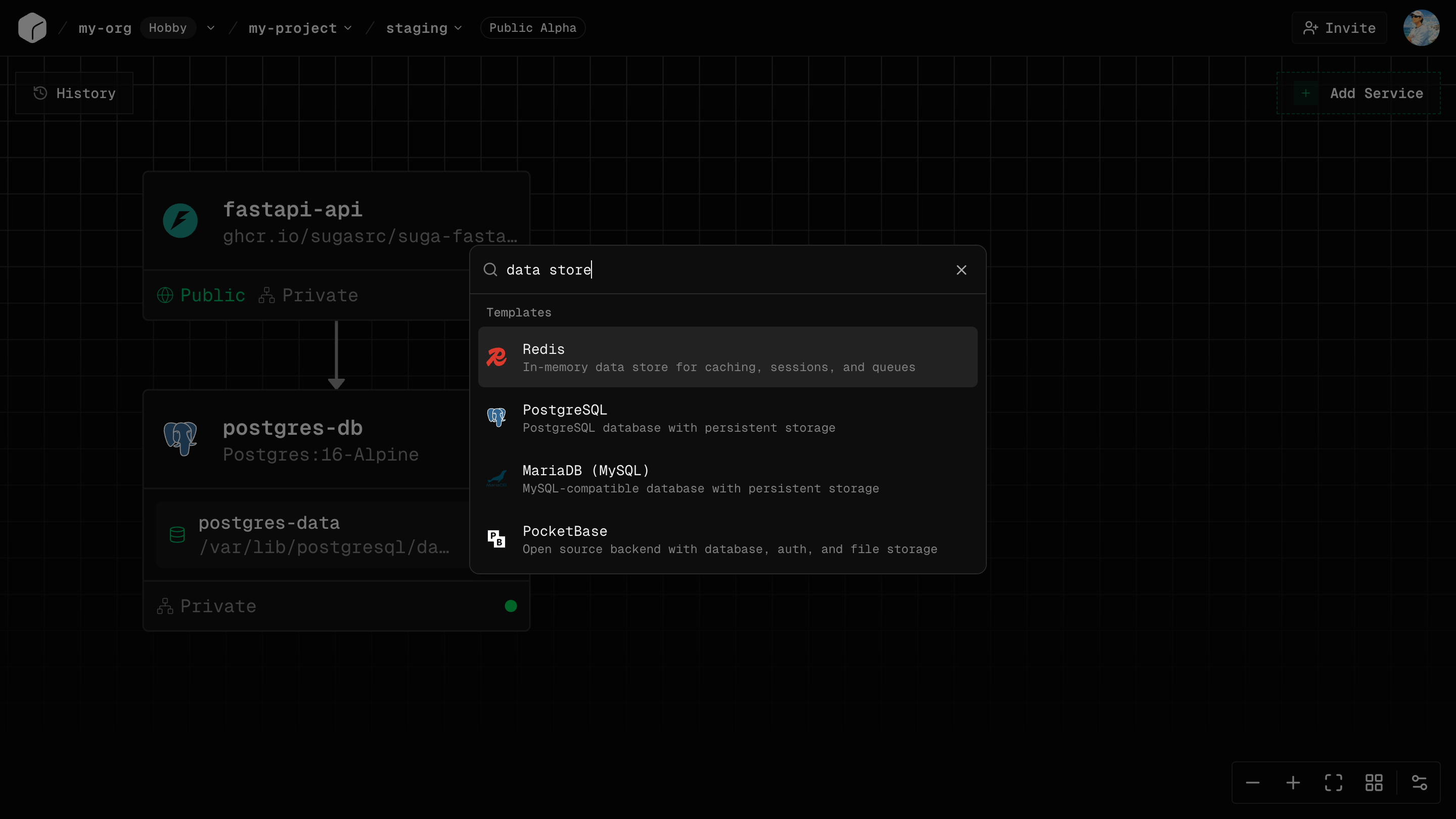
What Templates Provide
- Docker images with tested versions
- Environment variables with validation and auto-generation
- Networking and volumes configured automatically
- Multi-service stacks with connections pre-wired
Using a Template
- Open the Add palette and choose Template
- Select a template to add to your canvas
- Fill required fields (passwords can be auto-generated)
- Customize as needed (resources, env vars, networking)
- Click Apply
Multi-Service Templates
Some templates deploy complete stacks (app + database + cache) with all connections configured automatically, including service-to-service networking and shared environment variables.Environment Variables
Environment variables configure your services at runtime.Adding Variables
- Select service → Env Vars tab
- Click Add Variable
- Enter key (e.g.,
DATABASE_URL), value, and mark it Sensitive for secrets - Click Apply
Common Variables
Accessing in Code
Node.js:process.env.DATABASE_URL
Python: os.environ.get('DATABASE_URL')
Go: os.Getenv("DATABASE_URL")
Deno: Deno.env.get("DATABASE_URL")
Environment-Specific Values
Each environment has independent variables. Production and staging can have different database URLs, API keys, and feature flags without leaking between environments.Resources
Resources define CPU and memory allocation per service.CPU
CPU is set with a slider, not a fixed list of sizes. It starts at 0.05 cores and moves in steps of 0.05, up to the maximum your plan allows. See Plan Limits for the maximum on each plan. New services start at 0.1 cores. Throttling: If your service exceeds CPU allocation, it gets throttled (slowed down) but doesn’t crash.Memory
Memory is also a slider, in steps of 8 MiB, up to your plan maximum. New services start at 128 MiB. OOM Kills: If your service exceeds memory, it will be terminated and restarted automatically.CPU and Memory Ratio
On Suga Cloud, per-service memory must fall within 1 GiB to 6.5 GiB per CPU core. This is not a suggestion. A service whose CPU and memory fall outside the ratio is rejected, and you are told the valid memory range for the CPU you chose. The sliders bound themselves to the valid window, so moving CPU can move memory with it. Memory is adjusted up or down to stay inside the range. Nothing is silently rounded up behind your back.Plan Limits
Per-service maximums and organization-wide pool budgets vary by plan. See Plan Limits for full details.Scaling
Scale applications by adding resources (vertical) or replicas (horizontal).Replicas
Replicas are identical copies of your service running simultaneously:- Load Balancing - Traffic distributed automatically
- Redundancy - If one fails, others continue serving
- Rolling Updates - New versions deploy gradually
Setting Replicas
- Select service → Config tab → Replicas
- Set the number of replicas
- Click Apply
Volume Limitation
Keep databases at 1 replica and scale the stateless application services that connect to them.Cost
Replicas multiply resource costs:- 1 replica with 1 CPU: 1x cost
- 3 replicas with 1 CPU: 3x cost
Common Questions
Can I change resources without redeploying?
Can I change resources without redeploying?
No, resource changes require a new deployment.
Can I horizontally scale services with volumes?
Can I horizontally scale services with volumes?
No, services with volumes must have exactly 1 replica.
What happens if I exceed CPU limits?
What happens if I exceed CPU limits?
Service gets throttled (slowed down) but doesn’t crash.
What happens if I exceed memory limits?
What happens if I exceed memory limits?
Service may be killed (OOMKilled) and restarted. Increase memory to prevent this.