

composer.json, so no Dockerfile is needed.
This guide explains how to deploy a Laravel app with MySQL in two ways:
Your repo needs a standard Laravel layout: a composer.json requiring laravel/framework, an artisan file at the root, the usual app/, config/, public/, and routes/ folders, and a .env.example listing the DB and app config variables you use.
The guide assumes your app reads DB_CONNECTION, DB_HOST, DB_PORT, DB_DATABASE, DB_USERNAME, and DB_PASSWORD from the environment (Laravel’s default config/database.php does), and APP_KEY, APP_ENV, APP_DEBUG, and APP_URL for app-level config.
Deploy using the Canvas
1
Create a project from your repo
In the Suga dashboard, click New project and pick your Laravel repo from the GitHub list, installing the Suga GitHub App if prompted. On the import page, name the project, set the branch you want deployed, and leave the build method on auto-detect; Suga detects PHP from
composer.json. See Import from a GitHub repository for the full set of import options.Click Create project. Suga opens the canvas with the app service already connected to your repo.2
Add MySQL from a template
Right-click empty space on the canvas, choose Add → Template, and pick MySQL. Suga prompts for Suga adds the mysql container with port 3306 private and a volume mounted at
MYSQL_DATABASE (defaults to mydb) and MYSQL_USER, and pre-fills generated values for MYSQL_PASSWORD and MYSQL_ROOT_PASSWORD.Copy the passwords now, they won’t be visible after creation.
/var/lib/mysql.3
Expose the app on HTTPS
Select the app service. On its Config tab, in the Private Network section, set the port to
8000. Then, in the Public Network section, click Add Endpoint → HTTPS Domain and choose port 8000.4
Wire the database and app config
On the app container, add these env vars: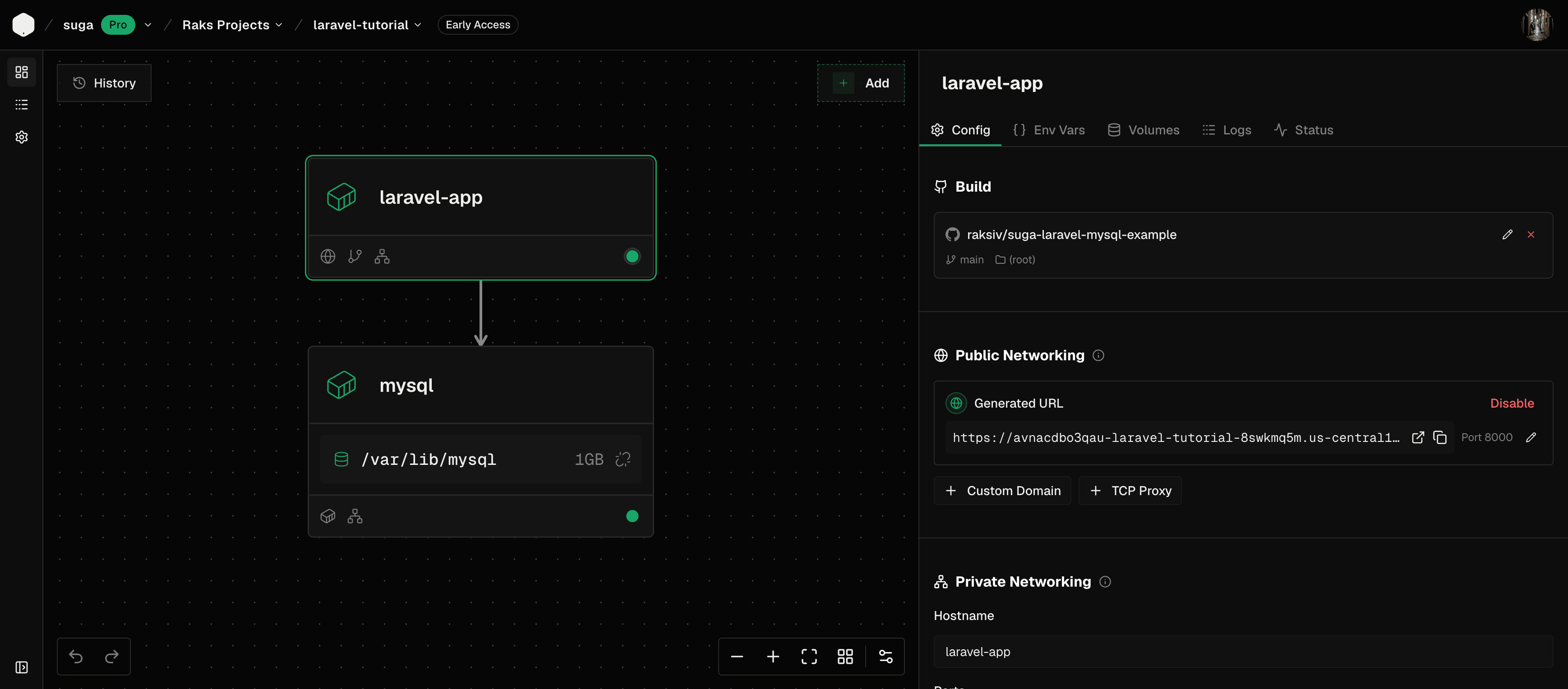
PORT:8000— FrankenPHP reads this to know which port to bind to.DB_CONNECTION:mysqlDB_HOST:mysqlDB_PORT:3306DB_DATABASE: whatever you set forMYSQL_DATABASEon the mysql containerDB_USERNAME: whatever you set forMYSQL_USERon the mysql containerDB_PASSWORD: choose Reference, pickmysql→MYSQL_PASSWORDAPP_ENV:productionAPP_DEBUG:falseAPP_URL: set tohttps://followed by this container’sSUGA_PUBLIC_HOSTNAMEreference, using the{{...}}picker to insert it alongside literal textLOG_CHANNEL:stderr
5
Apply to deploy
Add
APP_KEY as a Sensitive env var on the app container. Generate one locally with php artisan key:generate --show and paste the value (starts with base64:). Click Apply in the top right.Suga clones the app repo, runs composer install, applies migrations, links storage, runs php artisan optimize, and boots FrankenPHP on port 8000, serving public/ as the web root. Open the public URL and you’ll get your app’s home route.Deploy using an Agent
To deploy with a coding agent such as Claude Code, Codex, or OpenCode, follow these steps:1
Connect the Suga MCP
If you haven’t already, connect your agent to the Suga MCP server.
2
Ask your agent to deploy
Ask your agent to deploy your repo to Suga. Here’s a basic prompt you can use, with your repo and branch filled in:The agent will give you a link to the new environment on the Suga canvas. Open it to review the setup.
Prompt
3
Set the sensitive values
Set
MYSQL_PASSWORD and MYSQL_ROOT_PASSWORD on the mysql container: click each value input and paste values generated with openssl rand -hex 32. On the app container, add APP_KEY as a Sensitive env var (generate one locally with php artisan key:generate --show and paste the value).Save all three values somewhere secure, you’ll want them later.
4
Apply to deploy
Click Apply in the top right. Suga clones the app repo, runs
composer install, applies migrations, links storage, runs php artisan optimize, and boots FrankenPHP on port 8000, serving public/ as the web root. Open the public URL and you’ll get your app’s home route.FAQ
My deploy fails with 'could not find driver' or 'Table sessions doesn't exist'
My deploy fails with 'could not find driver' or 'Table sessions doesn't exist'
Two Laravel scaffolding gotchas most often show up here:
could not find driverat runtime means the PDO extension for your database isn’t installed in the build. Add"ext-pdo_mysql": "*"tocomposer.json’srequireblock (orext-pdo_pgsqlfor Postgres), runcomposer update, and redeploy. Production Laravel apps that shipped on Heroku almost always have this; fresh Laravel 12+ scaffolds don’t.Table 'sessions' doesn't existmeansSESSION_DRIVER=databaseis set (the fresh-Laravel default in the.env.example) but no sessions migration lives indatabase/migrations/. Either runphp artisan session:tablelocally to generate the migration and commit it, or setSESSION_DRIVER=fileon the app container if your app doesn’t need database-backed sessions.
Do I need a Dockerfile to deploy Laravel on Suga?
Do I need a Dockerfile to deploy Laravel on Suga?
No. Suga detects PHP from your
composer.json and runs the standard install and start flow. If you already have a Dockerfile, you can tell the agent to use it instead; otherwise auto-detect handles the common case.Which PHP versions does Suga support?
Which PHP versions does Suga support?
Suga uses the version pinned in
composer.json under require.php, and defaults to PHP 8.4 when there isn’t one.How do I set APP_KEY?
How do I set APP_KEY?
Generate the key locally with
php artisan key:generate --show and add the returned string (starts with base64:) as a Sensitive env var named APP_KEY on the app container. Laravel uses it for session encryption and other cryptographic operations, and refuses to run without it.How do I run migrations before the app starts?
How do I run migrations before the app starts?
Suga’s Laravel auto-detect runs
php artisan migrate --force at every container boot, so migrations happen without any extra configuration. Storage symlinks and php artisan optimize also run automatically.Can I skip auto-migrations at boot?
Can I skip auto-migrations at boot?
Yes. Set
RAILPACK_SKIP_MIGRATIONS=true as an env var on the app container. Run migrations manually instead — from the container’s shell in the dashboard, or from your CI pipeline before you Apply.Can I use Laravel Octane?
Can I use Laravel Octane?
Yes, though FrankenPHP already runs the app as a persistent server. For Swoole or RoadRunner, add
laravel/octane and the matching extension (ext-swoole) to composer.json, then pass RAILPACK_START_CMD=php artisan octane:start --server=swoole --host=0.0.0.0 --port=8000 as a build arg.How do I run queue workers or scheduled tasks?
How do I run queue workers or scheduled tasks?
Add a second app container on the canvas with the same repo but a different start command, for example
RAILPACK_START_CMD=php artisan queue:work for a worker or RAILPACK_START_CMD=php artisan schedule:work for the scheduler. Set the same env vars and leave it with no public endpoint. For Redis-backed queues, add a Redis container from the template and set QUEUE_CONNECTION=redis with a reference to the Redis password.What if my asset pipeline uses Vite or Mix?
What if my asset pipeline uses Vite or Mix?
Nothing to do for Vite. When your repo has a
package.json, Suga installs the Node dependencies and runs its build script as part of the build. For Mix, whose script is usually named something else, point RAILPACK_BUILD_CMD at it as a build arg, for example npm run production. Compiled assets land in public/build/ and FrankenPHP serves them alongside the app.Where do uploaded files go?
Where do uploaded files go?
Configure
FILESYSTEM_DISK and mount a managed volume at /var/www/html/storage/app (or wherever your app writes files). For public assets on a multi-replica deployment, an S3-compatible bucket via Laravel’s s3 disk is a better fit than local storage.Can I use a database other than MySQL?
Can I use a database other than MySQL?
Yes. Swap the
mysql:8.4 container for a MariaDB or Postgres image. Update DB_CONNECTION, the driver-specific env vars, and the PHP extension in your composer.json (ext-pgsql for Postgres, and so on) to match.Can I use a custom domain?
Can I use a custom domain?
Yes. Attach your domain to the app container in the dashboard once the app is deployed. Update
APP_URL to the new domain so signed URLs and email links resolve correctly.What does deploying Laravel plus MySQL cost on Suga?
What does deploying Laravel plus MySQL cost on Suga?
The Free tier fits a small Laravel plus MySQL stack, including the build history and volume. Pro is per-seat with hosting credits that offset compute and storage. Full pricing at suga.app/pricing.