

/mcp is conventional), plus your language’s standard build files (package.json, requirements.txt or pyproject.toml, go.mod, and so on). Any MCP SDK works.
Deploy using the Canvas
1
Create a project from your repo
In the Suga dashboard, click New project and pick your MCP server repo from the GitHub list, installing the Suga GitHub App if prompted. On the import page, name the project, set the branch you want deployed, and leave the build method on auto-detect. See Import from a GitHub repository for the full set of import options.Click Create project. Suga opens the canvas with a service already connected to your repo.
2
Expose the transport on HTTPS
Select the service. On its Config tab, in the Private Network section, set the port to whatever your server listens on (typically 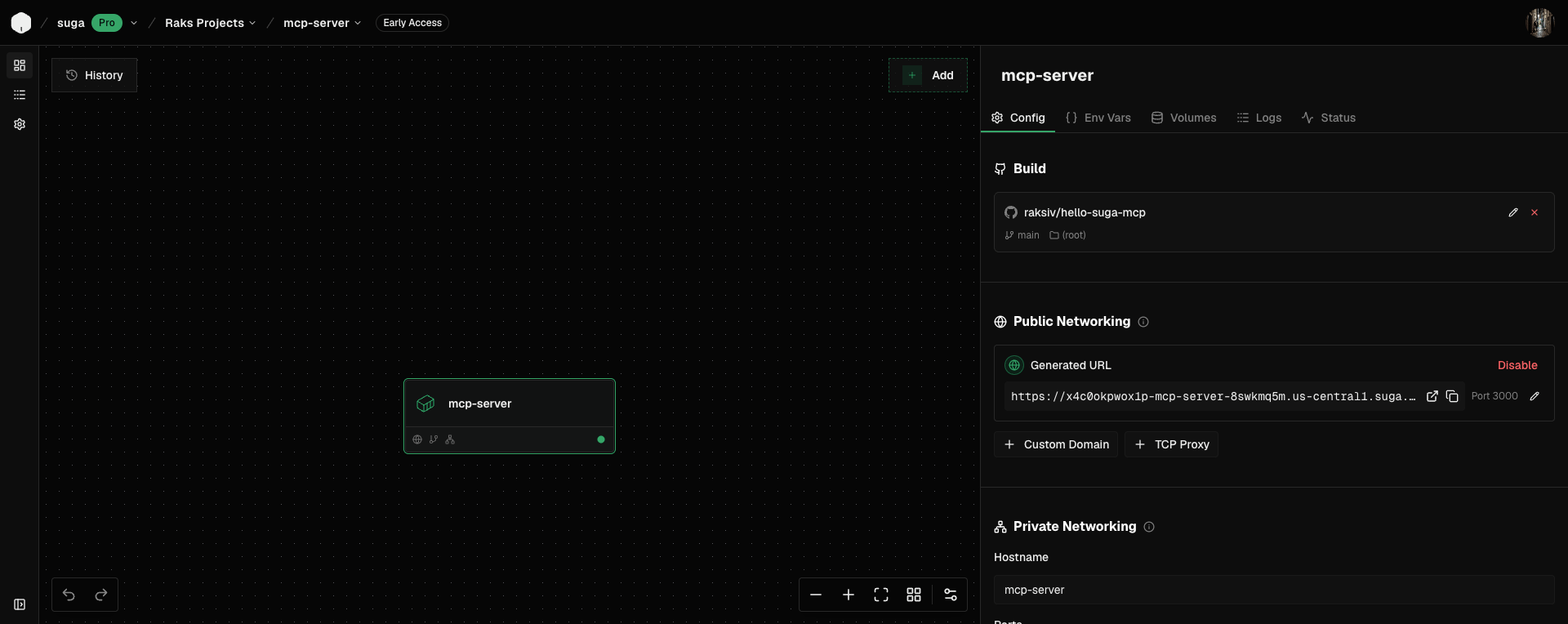
3000 or 8000). Then, in the Public Network section, click Add Endpoint → HTTPS Domain and choose the same port. Suga reserves a hostname immediately and shows the URL in the properties panel. This URL plus your server’s route (like /mcp) is what clients will connect to.3
Apply to deploy
If your server uses OAuth or calls out to third-party APIs, add the client secrets and API keys as Sensitive env vars on the container first. Then click Apply in the top right. Suga clones the repo, installs dependencies, starts the server, and rolls the container out.
4
Connect a client
Connect a client to the public URL from the properties panel, plus your server’s route. In Claude Code:Run 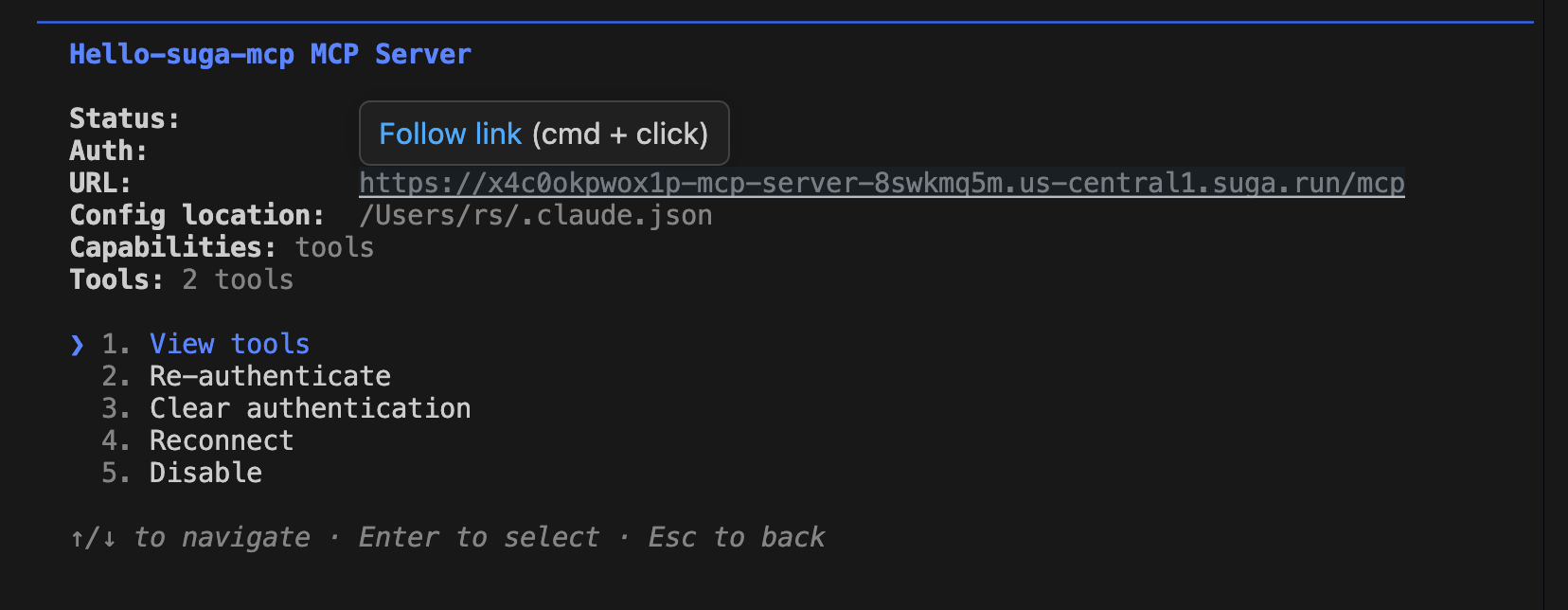
/mcp in the session and the tools your server exposes show up.Deploy using an Agent
To deploy with a coding agent such as Claude Code, Codex, or OpenCode, follow these steps:1
Connect the Suga MCP
If you haven’t already, connect your agent to the Suga MCP server.
2
Ask your agent to deploy
Ask your agent to deploy your repo to Suga. Here’s a basic prompt you can use, with your repo, branch, and port filled in:The agent will give you a link to the new environment on the Suga canvas. Open it to review the setup.
Prompt
3
Apply to deploy
If your server uses OAuth or calls out to third-party APIs, add the client secrets and API keys as Sensitive env vars on the container first. Then click Apply in the top right. Suga clones the repo, installs dependencies, and starts the server.
4
Connect a client
Connect a client to the public URL from the container’s properties panel, plus your server’s route. In Claude Code:Run
/mcp in the session and the tools your server exposes show up.FAQ
Do I need a Dockerfile to deploy an MCP server on Suga?
Do I need a Dockerfile to deploy an MCP server on Suga?
No. Suga detects the language from the standard project files (
package.json, requirements.txt, go.mod, etc.) and runs the right install and start commands. Bring a Dockerfile if you need custom system dependencies; otherwise auto-detect handles the common case.Which MCP SDKs and languages work?
Which MCP SDKs and languages work?
Any. If your server runs in a container that speaks HTTP on a port, Suga runs it. Node with
@modelcontextprotocol/sdk, Python with mcp, Go, Rust, and any custom implementations all work the same way.Does streamable HTTP work out of the box?
Does streamable HTTP work out of the box?
Yes. Suga’s public HTTPS endpoint forwards long-lived connections to your container, so an MCP server speaking streamable HTTP is reachable at the public URL the moment it starts. No extra configuration needed for streaming or SSE.
How do I add OAuth to my MCP server?
How do I add OAuth to my MCP server?
OAuth is a server-side concern: implement the flow in your MCP server (the
@modelcontextprotocol/sdk and Python mcp packages both have OAuth helpers), then set the provider config and client secrets as env vars on the container. Suga stores sensitive values encrypted at rest and never exposes them in the UI.Can I connect Claude Code, Cursor, and ChatGPT to a Suga-hosted MCP server?
Can I connect Claude Code, Cursor, and ChatGPT to a Suga-hosted MCP server?
Yes. Any client that supports remote MCP servers over HTTP can connect at the public URL. Claude Code uses
claude mcp add --transport http, Cursor adds an entry to mcp.json, Claude Desktop uses Add custom connector, and ChatGPT connectors accept the URL directly.What about session state across replicas?
What about session state across replicas?
In-container sessions live in the container’s memory, so with more than one replica each instance keeps its own. For a shared session store, add a Redis container on the canvas and point your server at it using a cross-container reference for the password.
Can I deploy from a monorepo?
Can I deploy from a monorepo?
Yes. When configuring the container, set the build context to the MCP server’s subdirectory, or pass
RAILPACK_BUILD_CMD and RAILPACK_START_CMD as build args to target the specific server.Can I use a custom domain?
Can I use a custom domain?
Yes. Attach a memorable domain like
mcp.example.com to the container in the dashboard once the server is deployed.What does hosting an MCP server on Suga cost?
What does hosting an MCP server on Suga cost?
The Free tier fits a small MCP server and its build history. Pro is per-seat with hosting credits that offset compute and storage. Full pricing at suga.app/pricing.